Permission Audit Workbook for Jira Cloud

60 read-only checks to find who can see and do what in your Jira Cloud site, and what to fix first.

$19 one-time, in US dollars

A PDF to work through, and an Excel findings log with a CSV copy. Creem emails you the download link right after payment. If it doesn't help, ask for a refund within 14 days.

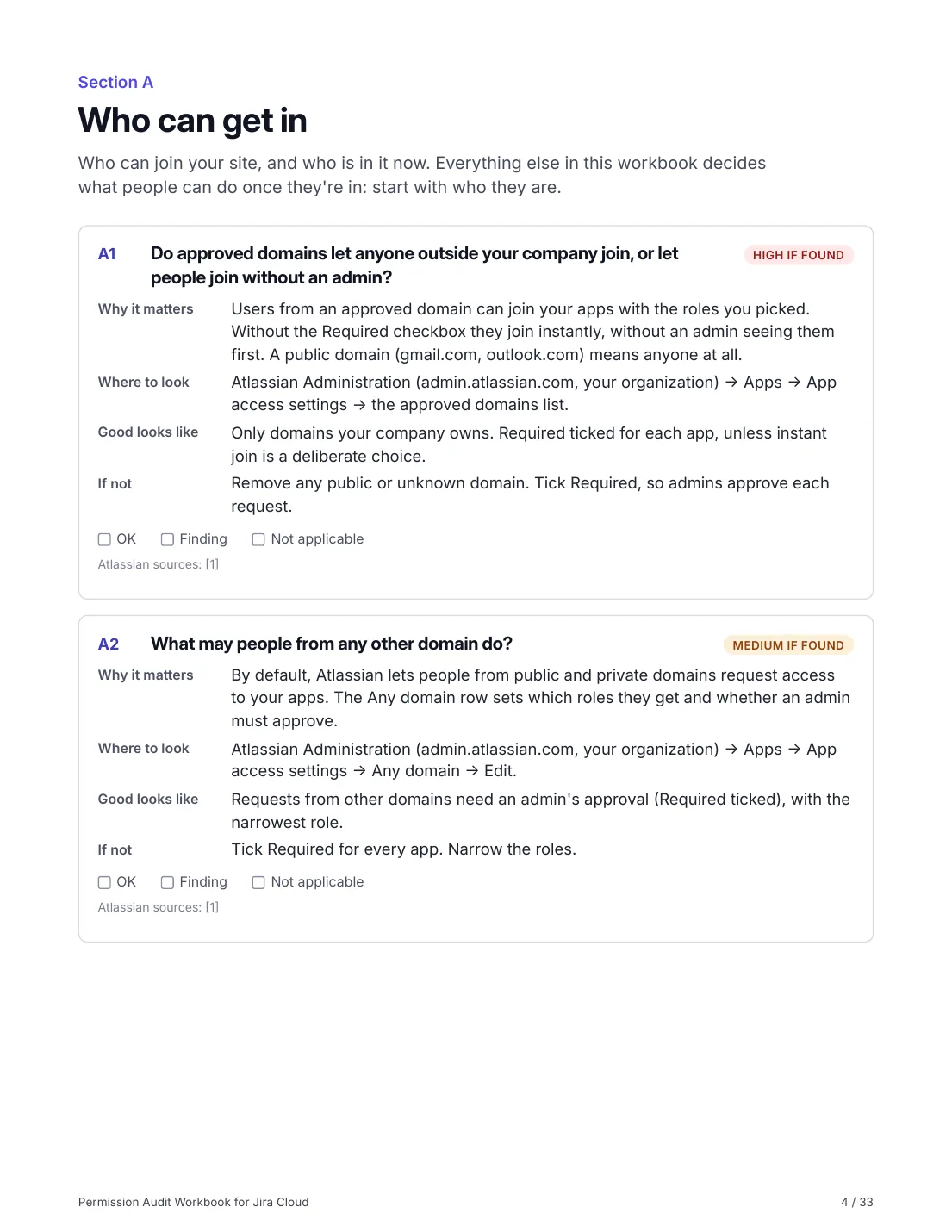
Page 4 of the workbook: checks A1 and A2, each with why it matters, where to look, what good looks like, and how to fix it.
Page 4 of 33: the first two checks.

What you get

The workbook, a 33-page PDF60 checks in 11 areas. Each one says why it matters, where to look, what good looks like, and how to fix it. 18 are marked High: fix those this week.
The findings log, in ExcelOne row per check: mark it OK, Finding or Not applicable, and note the fix, its owner and due date. The Summary sheet counts open findings by area and severity. A CSV copy imports into Jira or Google Sheets.
Sources you can checkEvery check cites the Atlassian documentation it rests on: 57 pages, each with its address. Where Atlassian's pages don't say something, the workbook says so instead of guessing.
Jira's current namesSpaces, work items and apps, as Jira says them now, with a table of the old names. Menu paths as Atlassian documented them on November 2, 2026.

The 11 areas

If you only have an hour, start with D: what people who aren't logged in can see.

AreaChecksHigh
A. Who can get inWho can join your site, and who is in it now. Everything else in this workbook decides what people can do once they're in: start with who they are.92
B. Who administersAdmins can change everything this workbook checks. Keep them few, named, and protected.54
C. Global permissionsWhat people can do across the whole site, whatever space they're in.61
D. Public and anonymous accessWhat people who aren't logged in can see. Check this section first if you do nothing else.86
E. Company-managed spacesPermission schemes decide who does what in company-managed spaces (formerly projects). One scheme often serves many spaces, so one loose grant opens all of them.124
F. Team-managed spacesTeam-managed spaces (formerly next-gen) don't use permission schemes: each one sets its own access on its Access page.21
G. Filters, dashboards and boardsReports can leak what spaces protect: a filter's viewers see what it lists, as far as they can browse it.5–
H. Jira Service ManagementService spaces face customers. These checks cover who can send requests and see them; Atlassian's pages on help center and knowledge base access couldn't be verified for this edition, so they're left out rather than guessed.4–
I. Apps, tokens and integrationsEverything that reaches your Jira without a person clicking: apps, scripts and the places Jira sends data.6–
J. AI and RovoAtlassian's AI follows your permissions, so it finds what your permissions over-share, faster.1–
K. Audit logsThe record of who changed what: how you notice the next problem, and prove this audit happened.2–

One check, in full

D1, one of the 10 checks the workbook says to do first. The other 59 follow the same pattern.

D1

Does any permission scheme let the public browse a space?

High if found
Why it matters
Browse spaces granted to Public lets anyone on the internet view the space and its work items, without Jira access. It's how a space is made public on purpose, and the worst case when it's an accident.
Where to look
Jira settings (the cog in Jira's top bar) → Work items → Permission Schemes (under Work item attributes) → each scheme → Browse spaces.
Good looks like
No Public on Browse spaces, except for spaces you mean to publish.
If not
Remove Public from Browse spaces in every scheme a private space uses.

Free sites can't make spaces public.

Atlassian sources: Use permissions to make a space publicly visible; Space access and configuration permissions

Before you buy

Who is it for?Site and organization admins of Jira Cloud on the Standard, Premium or Enterprise plans, and the consultants who audit for them. Free sites have no permission schemes, space roles or security levels, so many checks won't apply. It doesn't cover Jira Data Center.
What access do I need?The organization admin role for the checks in Atlassian Administration, and the Administer Jira global permission for those in Jira's settings. A few checks need Atlassian Guard; they say so.
Does it change anything in my site?No. Every check is something you look at. What to fix, and when, is your call.
How long does it take?About 2 to 4 hours for a site with a few dozen spaces; longer with many permission schemes.
Can I use it for client audits?Yes, in your own audit work. Don't pass the workbook itself on or resell it (Terms).
How was it made?Written with AI (Claude, by Anthropic) from Atlassian's documentation, and checked against it: each check names its sources. It's a practical guide, not professional advice.
Who takes the payment?Creem (Armitage Labs OÜ) is our merchant of record: it takes the payment and handles sales tax and VAT. Your statement shows CREEM.IO* STORE.
And if it doesn't help?Write to support@monaidea.com within 14 days of buying for a full refund (Refund policy).
Is there an app that does this?For part of it, yes: Ledgerstone, our read-only Jira Cloud app on the Atlassian Marketplace, re-checks permission schemes, shared filters and dashboards, roles, groups and admin accounts every week, and shows what changed. The workbook is the full audit, done by hand, across all 11 areas, including sign-up and invitations, two-step verification, apps and API tokens, Service Management and audit logs.
Start with the 10 checks that matter most.

$19, one-time. PDF and Excel, ready to download right after payment.